


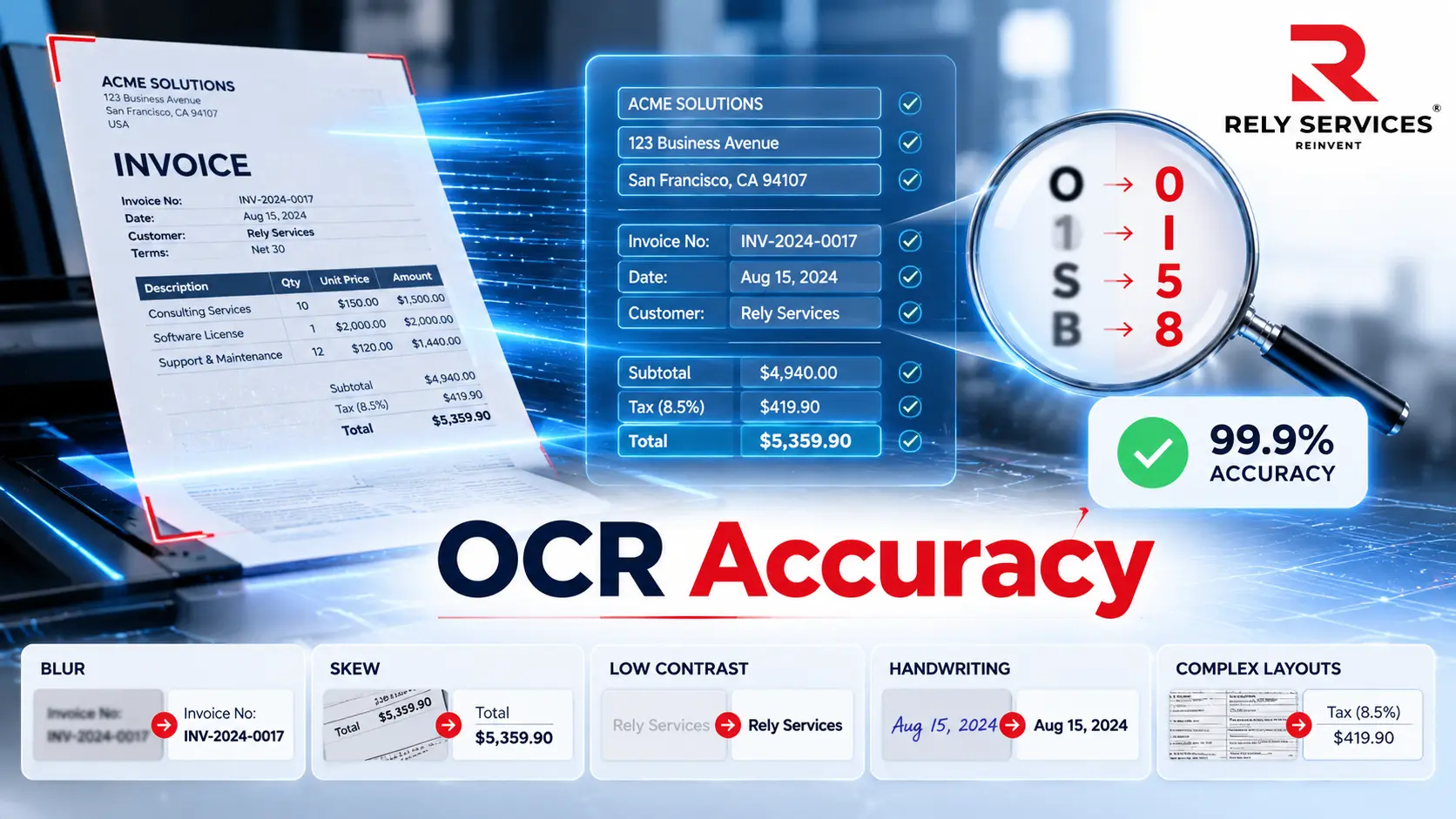
Businesses process large volumes of documents every day, including invoices, application forms, insurance claims, medical records, contracts, and customer files. Many of these documents contain information that must be captured and transferred into business systems. Optical Character Recognition (OCR) helps automate this work by converting text in scanned documents and images into machine-readable information.
However, OCR does not recognize every document with the same level of accuracy. Blurry scans, unusual fonts, handwritten notes, poor contrast, and complex layouts can lead to missing or incorrect information. Even a small recognition error can create problems when the extracted data is used for billing, claims processing, record management, or other business operations.
Understanding the factors that affect OCR accuracy helps businesses improve document quality, reduce processing errors, and create more reliable digital records. This guide explains the common causes of OCR errors and practical ways to improve text recognition in business document workflows.
For businesses handling large volumes of invoices, forms, medical records, and other documents, professional OCR services can help convert scanned information into machine-readable data through text recognition, data extraction, and quality checks.
What Is OCR Accuracy?
OCR accuracy refers to how correctly an OCR system identifies and converts text from a scanned document, image, or PDF into machine-readable text.
For example, consider an invoice that contains the amount $1,250.00. If the OCR system reads it as $1,250.80, the extracted value is incorrect. Similarly, confusing the number zero with the letter O in an account number or policy ID can affect the accuracy of the captured information.
OCR accuracy depends on more than the recognition software. It is also influenced by the quality of the original document, scanning conditions, text format, document layout, language settings, and the checks performed after extraction.
For businesses, the goal is not simply to convert paper documents into digital text. It is to capture information accurately enough for its intended use.
7 Common Factors That Affect OCR Accuracy
Several factors can affect how well OCR software recognizes text. Understanding these issues helps businesses identify why errors occur and what can be done to prevent them.
1. Poor Image and Scan Quality
Image quality is one of the most important factors affecting OCR accuracy. If a document is blurry, faded, pixelated, or difficult to read, the OCR system may struggle to identify individual characters.
For example, a low-quality scan of a purchase order may make product codes, quantities, or supplier details difficult to recognize. A faded insurance form may contain text that is partially missing or unclear.
Common image-quality problems include:
- Blurry or out-of-focus scans
- Low-resolution images
- Faded or damaged text
- Shadows, glare, or uneven lighting
- Compression that reduces image detail
How to improve it: Use a good-quality scanner and check the document before processing. For many standard printed documents, 300 DPI is a useful starting point. Small text or detailed documents may need a higher resolution. Avoid unnecessary image compression and make sure the text remains clear when the image is enlarged.
2. Incorrect Page Alignment and Document Distortion
OCR systems work best when text lines are properly aligned. A document that is tilted, rotated, folded, or photographed at an angle can make it harder for the software to identify words and reading order.
For example, if an invoice is scanned at an angle, the system may misread line items or fail to identify the correct relationship between a description and its corresponding amount.
Common alignment issues include:
- Skewed or tilted pages
- Rotated documents
- Curved pages near a book binding
- Perspective distortion in mobile phone photographs
- Cropped text near page edges
How to improve it: Straighten tilted pages before running OCR. Use deskewing and rotation correction where needed. Crop unnecessary background areas while making sure that no text, page numbers, or important fields are removed. For photographed documents, position the camera parallel to the page and avoid shadows.
3. Low Contrast and Distracting Backgrounds
OCR software needs to distinguish text from the background. When the contrast is poor, characters may blend into the page and become difficult to recognize.
This can happen when documents contain light-colored text, faded printing, colored paper, patterned backgrounds, stamps, or handwritten marks over printed information.
For example, an older medical record may contain faded text, while a business form may use light gray labels and thin lines. These elements can make accurate text recognition more difficult.
How to improve it: Check whether the text is clearly visible against the background. Adjust brightness and contrast carefully during image preprocessing. Remove unnecessary background noise where possible, but avoid editing the image so aggressively that important characters disappear.
4. Unusual Fonts and Small Text
OCR systems are generally better at recognizing clear, standard printed text than decorative fonts or very small characters. Unusual letter shapes, inconsistent font sizes, and closely spaced characters can lead to recognition errors.
For example, a system may confuse similar-looking characters such as:
- O and 0
- I and 1
- S and 5
- B and 8
These errors can be especially important in invoices, account numbers, product codes, medical identifiers, and insurance policy records.
How to improve it: Use clear, readable fonts when creating digital documents. When scanning existing documents, capture enough detail to preserve small characters. Review critical fields such as dates, amounts, reference numbers, and identification codes rather than relying only on the overall extracted text.
5. Handwriting and Manual Annotations
Handwritten text is generally more difficult for OCR systems to recognize than printed text. Handwriting varies from person to person, and letters or numbers may be connected, inconsistent, or difficult to distinguish.
Business documents often contain a combination of printed information and handwritten additions. For example:
- A handwritten date on an application form
- Notes added to an insurance claim
- Handwritten quantities on a delivery document
- Corrections or signatures on a medical form
Traditional OCR may not reliably recognize all these elements. Some systems offer handwriting recognition capabilities, but results depend on the handwriting, language, document quality, and technology being used.
How to improve it: Keep handwritten information clear and avoid writing over printed text. Where possible, use structured digital forms instead of handwritten fields. Route uncertain handwriting and important manually entered values for human review.
6. Complex Document Layouts, Tables, and Forms
OCR accuracy is not limited to recognizing individual characters. The system must also understand how text is arranged on a page.
Documents with multiple columns, tables, checkboxes, merged cells, text boxes, stamps, and overlapping elements can make it difficult to preserve the correct reading order and relationships between fields.
For example, an invoice may contain item descriptions, quantities, tax values, and totals in separate columns. If the OCR system reads the content in the wrong order, a quantity or amount may be associated with the wrong item.
Similar issues can occur in insurance claim forms, financial statements, and healthcare records.
How to improve it: Use OCR technology that can handle the layout and document types being processed. Separate complex tables or sections when necessary, and validate extracted fields against their expected structure. For important documents, check that values remain connected to the correct labels, rows, and columns.
7. Incorrect Language and OCR Configuration
OCR software uses language information and recognition settings to interpret characters and words. If the wrong language is selected, the system may misread words, special characters, accents, and punctuation.
Configuration issues can also affect results. A system designed for standard printed documents may not perform as expected on forms, tables, or documents with mixed content.
For example, processing a document containing English and another language with only English recognition settings may result in incorrect words or missing characters.
How to improve it: Select the correct document language before processing. Review OCR settings based on the document type, layout, and expected output. Test the configuration on representative documents before applying it to a large batch.
How to Improve OCR Accuracy: 6 Practical Steps
Improving OCR accuracy requires a process that considers document quality, recognition settings, and output validation. The following steps can help businesses reduce errors and improve the reliability of extracted information.
1. Assess Documents Before Processing
Start by reviewing the documents that will go through OCR. Identify whether they are clear, faded, damaged, handwritten, or difficult to read.
Group documents by type and condition. For example, invoices, application forms, medical records, and insurance documents may need different processing settings.
This initial assessment helps identify documents that require additional preparation or manual review.
2. Improve Image Quality Before OCR
Prepare scanned documents before sending them through the recognition process. Depending on the condition of the source file, this may include:
- Increasing resolution when the original image lacks detail
- Correcting page rotation and alignment
- Adjusting brightness and contrast
- Removing unwanted background noise
- Cropping unnecessary borders
- Improving the visibility of faded text
Image preprocessing should be performed carefully. Excessive sharpening, contrast adjustment, or cropping can remove details that the OCR system needs to recognize.
3. Use OCR Settings That Match the Document
Different documents have different structures and recognition requirements. A standard letter, a multi-page invoice, and a structured application form should not automatically be treated in the same way.
Choose OCR settings based on the document’s language, layout, orientation, and content. If the workflow includes tables or forms, check whether the technology can identify fields and preserve their relationships.
Test the selected settings on a sample of documents before processing a large volume.
4. Validate Important Extracted Fields
Text recognition alone does not confirm that the extracted data is correct. Businesses should check important fields against the original document.
Depending on the document type, these fields may include:
- Invoice numbers and invoice dates
- Vendor names and payment amounts
- Insurance policy and claim numbers
- Patient identifiers and medical record details
- Customer names and contact information
- Product codes and order quantities
Validation rules can help identify missing values, unexpected formats, duplicate records, or values that fall outside an expected range.
For example, an invoice workflow can flag a missing invoice number or an amount that does not match the expected format.
5. Use Human Review for Uncertain Results
Not every document can be processed accurately through automation alone. Low-quality scans, handwritten notes, unusual layouts, and unclear fields may require human review.
A practical workflow can send uncertain results to a review queue instead of accepting them automatically. Reviewers can compare the extracted information with the source document and correct errors before the data moves to the next stage.
This approach is especially important when processing financial, healthcare, insurance, and other business records where incorrect information can affect downstream operations.
6. Monitor Results and Improve the Process
OCR accuracy should be monitored over time, not checked only during initial setup.
Businesses can review recurring errors, compare extracted values with source documents, and identify which document types require additional preparation or review.
For example, if a particular invoice format regularly produces errors in line-item descriptions, the business can review its scanning quality, layout settings, and validation process.
Use these findings to update document preparation guidelines, recognition settings, and quality-control checks.
How Businesses Can Measure OCR Accuracy
Businesses should evaluate OCR results using measures that reflect how the extracted information will be used. Two common text-recognition measures are Character Error Rate (CER) and Word Error Rate (WER).
Character Error Rate (CER): Measures the number of character-level errors in the OCR output compared with the correct text. It considers incorrect, missing, and additional characters.
Word Error Rate (WER): Measures word-level differences between the OCR output and the correct text. It helps show how often words are incorrectly recognized, omitted, or added.
These measures are useful for evaluating text recognition, but they do not always show whether business-critical information has been captured correctly.
For operational workflows, businesses should also measure field-level accuracy. This means checking whether specific values, such as invoice totals, claim numbers, dates, and patient identifiers, match the source documents.
A practical evaluation process should include:
- Select a representative sample of documents.
- Include both clear documents and difficult or low-quality examples.
- Compare OCR output with the original documents.
- Record character, word, and important field-level errors.
- Identify recurring error patterns.
- Adjust the workflow and test the results again.
The right measurement approach depends on the document type and the business process. A workflow that extracts invoice totals may need different quality checks from one that converts historical records into searchable text.
How Rely Services Supports Accurate OCR Document Processing
Improving OCR accuracy requires more than running documents through recognition software. Businesses also need a structured process for document preparation, data extraction, validation, and exception handling.
Rely Services provides OCR services that combine OCR technology with document processing and quality checks. The workflow can include document assessment, process mapping, text and data extraction, cleanup, validation, and human review where required.
This approach supports businesses that process different types of documents, including:
- Financial documents: Invoices, statements, and other records that require accurate data capture.
- Healthcare documents: Medical records and related documents that need to be converted into usable digital information.
- Insurance documents: Claim forms, policy documents, and supporting records.
- Logistics documents: Operational records and documents used in business workflows.
- Legal and business documents: Contracts, files, books, and other information-heavy records.
Rely Services also supports related document workflows through document digitization services and data processing services.
By combining automated recognition with appropriate cleanup and review, businesses can improve the usability of extracted information and reduce the amount of manual correction required in document-heavy operations.
Conclusion
OCR accuracy depends on several factors, including source document quality, image resolution, alignment, contrast, fonts, handwriting, document layout, and recognition settings. Poor-quality inputs and complex documents can lead to missing characters, incorrect values, and unreliable extracted data.
Businesses can improve results by assessing documents before processing, preparing images carefully, choosing suitable OCR settings, validating important fields, and reviewing uncertain results. Regular quality checks also help identify recurring issues and improve the overall workflow.
For organizations handling large volumes of invoices, claims, medical records, forms, and other business documents, a combination of OCR technology, document processing, and human validation can support more reliable data capture.
Frequently Asked Questions About OCR Accuracy
1. Can OCR recognize text from a photograph?
Yes. OCR can recognize text from photographs if the image is clear enough. Focus, lighting, page alignment, resolution, and the visibility of the text can affect the result. Images with glare, shadows, or perspective distortion may require preparation before processing.
2. Does OCR work with multiple languages in the same document?
Some OCR systems support multiple languages, but the available capabilities vary by software. The correct language settings and supported character sets are important when processing documents that contain more than one language.
3. Can OCR extract data from password-protected PDFs?
It depends on the file’s security settings and the OCR software being used. A password-protected or restricted PDF may need to be unlocked by an authorized user before its pages can be processed. Businesses should follow their document access and security policies.
4. Is OCR suitable for processing large volumes of business documents?
Yes. OCR can support high-volume document workflows by converting scanned information into machine-readable text. However, businesses should test the process on representative documents and establish validation and exception-handling procedures before scaling it.
5. How often should businesses review OCR performance?
OCR performance should be reviewed regularly, especially when document formats, source quality, recognition settings, or processing requirements change. Businesses can monitor error patterns and field-level accuracy to identify when additional checks or workflow adjustments are needed.
6. What is the difference between OCR confidence and OCR accuracy?
OCR confidence is a system-generated indication of how certain the software is about a recognized character, word, or field. OCR accuracy measures how closely the extracted result matches the correct information in the original document. A high confidence score does not automatically guarantee that the extracted value is correct.