


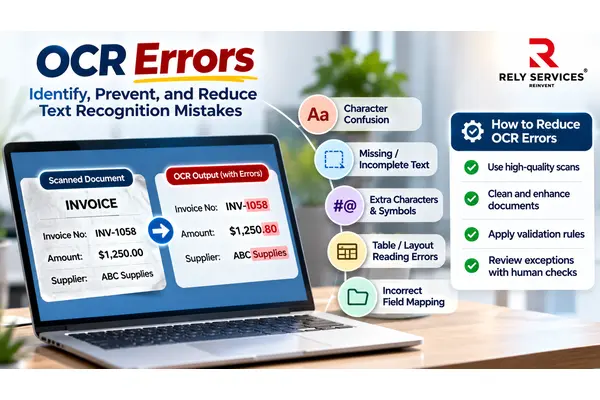
Businesses process large volumes of documents every day, including invoices, purchase orders, insurance claims, medical records, application forms, and financial statements. Optical Character Recognition (OCR) helps convert text from scanned documents and images into machine-readable information. This reduces the need for manual data entry and makes business records easier to search and process.
However, OCR does not always capture information correctly. It may confuse similar-looking characters, miss parts of a sentence, read table values in the wrong order, or place information in the wrong field. These errors can affect invoice records, customer details, claim information, and other business data.
Understanding common OCR errors helps businesses identify problems early and reduce the risk of incorrect information entering their systems. This guide explains the most frequent OCR errors, their impact on business operations, and practical ways to prevent them.
For businesses handling large volumes of scanned documents, OCR services can support text recognition, data extraction, document cleanup, and quality checks.
What Are OCR Errors?
OCR errors occur when Optical Character Recognition software incorrectly identifies, reads, or organizes text from a scanned document, image, or PDF.
For example, an OCR system may read the invoice number INV-1058 as INV-I058 because it confuses the number 1 with the letter I. It may also read an invoice amount of $1,250.00 as $1,250.80 or fail to capture a handwritten note.
OCR errors can occur at different stages of document processing. Sometimes the software recognizes the characters incorrectly. In other cases, it reads the text correctly but places it in the wrong order or associates a value with the wrong field.
For business document processing, these errors matter because extracted information may be transferred into accounting systems, databases, customer records, or other operational platforms.
8 Common OCR Errors Businesses Should Know About
OCR errors can affect individual characters, complete words, document structure, or extracted data fields. The following are common problems businesses may encounter when processing documents.
1. Character Recognition Errors
Character recognition errors occur when OCR software confuses one character with another because they look similar.
For example:
- The number 0 may be read as the letter O.
- The number 1 may be read as the letter I or lowercase l.
- The number 5 may be read as the letter S.
- The number 8 may be read as the letter B.
These errors can create problems when processing invoice numbers, account IDs, policy numbers, product codes, and customer reference numbers.
Example: An insurance policy number containing 0 may be captured with the letter O. The resulting value may not match the policy record in the business system.
How to reduce this error:
- Use clear, high-quality document scans.
- Apply field-specific validation rules for numbers, dates, and reference codes.
- Check important identifiers against existing business records.
- Route uncertain values for manual review.
2. Missing Text or Incomplete Recognition
Sometimes OCR software fails to recognize certain words, characters, or sections of a document. This may happen when text is faded, partially covered, cropped, or difficult to distinguish from the background.
For example, an invoice may contain a supplier address or tax amount near the edge of the page. If that area is cut off during scanning, the OCR system may not capture the information.
Missing text can also occur when documents contain small print, stamps, handwritten notes, or damaged sections.
Example: A purchase order may contain a delivery date, but the OCR output does not include it. The record may then be incomplete when transferred to the purchasing system.
How to reduce this error:
- Check that the entire document is visible before processing.
- Avoid cropping text near page edges.
- Improve the visibility of faded or unclear sections where possible.
- Use required-field checks to identify missing information.
- Compare extracted data with the original document when important fields are absent.
3. Extra Characters and Unwanted Symbols
OCR systems may sometimes recognize background marks, lines, stamps, or other visual elements as text. This can result in extra characters or unwanted symbols in the output.
For example, a table border may be interpreted as a character, or a stamp overlapping a printed word may create an incorrect text result.
This problem can affect scanned invoices, application forms, financial statements, and older business records.
Example: A supplier name may be extracted with an additional symbol because a stamp or line overlaps the printed text.
How to reduce this error:
- Remove unnecessary background noise before OCR processing.
- Use image cleanup carefully so that actual text is not removed.
- Review documents containing stamps, handwritten marks, or complex backgrounds.
- Apply text-cleanup rules to identify unusual characters in extracted fields.
4. Incorrect Reading Order
OCR software may recognize individual words correctly but arrange them in the wrong order. This often happens when documents contain multiple columns, sidebars, tables, text boxes, or different content sections.
For example, a financial statement may contain descriptions in one column and amounts in another. If the software reads across the page incorrectly, values may become disconnected from their descriptions.
Example: An invoice may show three products with separate quantities and prices. If OCR reads the columns in the wrong order, the extracted values may be associated with the wrong products.
How to reduce this error:
- Use OCR software that supports document layout analysis.
- Process complex layouts with suitable settings or document-specific templates.
- Check the reading order of multi-column documents.
- Verify that extracted information remains connected to the correct headings, labels, and sections.
5. Incorrect Table and Field Extraction
Recognizing text and understanding its position are two different tasks. OCR may identify the words and numbers in a document but fail to preserve their relationships within a table or form.
This is particularly important for invoices, purchase orders, financial reports, and claim forms.
Example: An invoice contains the following information:
| Item | Quantity | Amount |
| Office supplies | 10 | $250.00 |
| Equipment parts | 5 | $450.00 |
If the OCR workflow does not preserve the table structure, a quantity or amount may be assigned to the wrong item.
How to reduce this error:
- Use document processing tools that support table and field extraction.
- Define the expected fields and output structure before processing.
- Validate totals, quantities, and other related values.
- Compare extracted table data with the original document.
- Send unclear or mismatched records for review.
6. Incorrect Numbers, Dates, and Currency Values
OCR may recognize numbers and symbols incorrectly, especially when documents contain small text, unusual formatting, or regional differences.
For example:
- $1,250.00 may be read as $1,250.80.
- 03/04/2026 may be interpreted using the wrong date format.
- A decimal point may be missed.
- A minus sign may be mistaken for a line or removed.
- A percentage symbol may not be captured.
These errors are important in finance and accounting workflows because incorrect values can affect invoice records, payment preparation, reconciliation, and reporting.
Example: If an invoice amount is captured as $8,500 instead of $850.00, the incorrect value could cause a financial discrepancy if it is not detected.
How to reduce this error:
- Define accepted date, number, and currency formats.
- Validate amounts against expected business rules.
- Check invoice totals against line items and tax values where applicable.
- Flag unusually high or low amounts for review.
- Verify important financial values against the original document.
7. Language and Special Character Errors
OCR software uses language and character settings to recognize text. If the selected language does not match the document, the system may misread words, punctuation, accented characters, and special symbols.
This can be a challenge for businesses processing documents from suppliers, customers, or partners in different countries.
For example, a company may receive invoices containing English text alongside names or addresses with accented characters. If the OCR configuration does not support the required character set, some information may be captured incorrectly.
How to reduce this error:
- Select the correct recognition language.
- Confirm that the OCR software supports the required character set.
- Test documents containing special characters before large-scale processing.
- Validate names, addresses, and other important text fields.
- Use language-specific review rules where necessary.
8. Duplicate or Repeated Data
OCR processing may sometimes produce duplicate or repeated information. This can happen when documents contain repeated headers, footers, page numbers, overlapping text, or when the same document is submitted more than once.
For example, a multi-page invoice may contain the same supplier details on every page. A workflow that does not identify repeated information may capture those details multiple times.
Duplicate records can also occur when businesses receive the same invoice through different channels.
How to reduce this error:
- Use document-level identification and duplicate checks.
- Define rules for handling repeated headers and footers.
- Check invoice numbers, supplier IDs, dates, and amounts against existing records.
- Review multi-page documents to ensure information is captured at the correct level.
- Maintain a consistent process for identifying previously processed files.
How OCR Errors Affect Business Operations
OCR errors are not limited to incorrect text in a digital file. They can affect the business activities that depend on the extracted information.
Finance and Accounts Payable
Incorrect invoice numbers, amounts, tax values, or supplier details can create duplicate records, reconciliation issues, and payment delays. Finance teams may need to spend additional time checking and correcting information.
Healthcare Administration
Incorrectly captured patient details, dates, or medical record information can affect record organization and administrative workflows. Important information should be checked against the original document before it is used.
Insurance Processing
Errors in policy numbers, claim details, dates, and supporting document information can make it harder to match records and process claims efficiently.
Logistics and Transportation
Incorrect shipment references, quantities, carrier details, or freight amounts can create problems in invoice verification and operational record management.
Document Management
Missing or incorrectly recognized text can affect document indexing and search. Employees may find it difficult to retrieve a document if its searchable text or identifying information is incomplete.
The impact depends on the document type and how the extracted information is used. This is why businesses should identify and correct OCR errors before the data moves into downstream systems.
How Businesses Can Reduce OCR Errors
Reducing OCR errors requires a process that checks document quality, recognition output, and extracted business information. The following steps can help organizations improve their document processing workflows.
1. Check Document Quality Before Processing
Start by reviewing the source documents. Identify blurry scans, faded text, damaged pages, low contrast, and incomplete images.
For many standard printed documents, 300 DPI is a useful scanning starting point. Smaller text or difficult source material may require different settings. The appropriate resolution should be tested with the actual documents being processed.
Also check that pages are straight, complete, and readable before sending them through OCR.
2. Prepare Images Before Running OCR
Image preprocessing can help reduce recognition problems caused by poor document quality.
Depending on the source document, preparation may include:
- Correcting page rotation and skew.
- Adjusting brightness and contrast.
- Removing unwanted background noise.
- Improving the visibility of faded text.
- Cropping unnecessary borders without removing content.
- Separating pages or sections when required.
These changes should be made carefully. Over processing an image can remove important character details and create additional recognition errors.
3. Use Suitable OCR Settings
Different document types may require different recognition settings. A standard printed invoice, a multi-column statement, and a scanned application form do not always need the same configuration.
Select the appropriate language and document settings. Check whether the OCR system supports tables, forms, multi-page files, and the document layouts used in your workflow.
Test the settings on a sample batch before processing large volumes.
4. Define Data Validation Rules
Validation helps identify information that may have been recognized incorrectly.
For example:
- Invoice numbers should follow an expected format.
- Dates should use an accepted date format.
- Currency values should contain valid numbers and decimal places.
- Required supplier fields should not be empty.
- Duplicate invoice numbers should be flagged for review.
Validation rules do not automatically correct every OCR error. Their purpose is to identify information that needs further checking.
5. Use Human Review for Important or Uncertain Fields
Automated recognition may not be reliable enough for every document or field. Human review is useful when the system identifies low-confidence text, missing information, unusual values, or mismatched records.
For example, an invoice amount that does not match the expected total should be checked against the source document before it is accepted.
Businesses can create review queues for exceptions rather than checking every field manually. This helps direct attention to records that need additional verification.
6. Monitor Error Patterns and Processing Results
OCR quality should be reviewed regularly. Businesses can track the types of errors that occur most often and identify where improvements are needed.
Useful checks include:
- Number of documents requiring manual correction.
- Frequency of missing or incorrectly captured fields.
- Duplicate records identified during processing.
- Accuracy of important fields such as invoice numbers and totals.
- Number of documents sent for exception review.
- Recurring errors associated with specific document formats.
These checks help businesses improve scanning instructions, recognition settings, validation rules, and review procedures over time.
How Rely Services Supports OCR Document Processing
Businesses handling large volumes of documents need more than text recognition. They also need a structured process for data extraction, cleanup, validation, and exception handling.
Rely Services provides OCR services that combine OCR technology with document processing and quality checks. The workflow can include document assessment, process mapping, text and data extraction, cleanup, validation, and human review where required.
This approach supports organizations processing different types of documents, including:
- Financial documents: Invoices, statements, and other records that require accurate data capture.
- Healthcare documents: Medical records and related documents that need to be converted into usable digital information.
- Insurance documents: Claim forms, policy documents, and supporting records.
- Logistics documents: Operational records and documents used in business workflows.
- Legal and business documents: Contracts, files, books, and other information-heavy records.
Rely Services can also support document cleanup, indexing, structured output preparation, and ongoing quality checks based on the agreed workflow.
By combining automated recognition with appropriate validation and human review, businesses can reduce avoidable data capture errors and improve the usability of their digital records.
Conclusion
OCR errors can affect individual characters, complete words, table structures, and extracted business data. Common examples include confusing similar-looking characters, missing text, reading information in the wrong order, and capturing incorrect dates or amounts.
Businesses can reduce these errors by checking document quality, preparing images, selecting suitable OCR settings, defining validation rules, and reviewing uncertain information. Regular monitoring also helps identify recurring problems and improve processing procedures.
For organizations that manage invoices, claims, medical records, forms, and other document-heavy workflows, a combination of OCR technology, structured data processing, and quality checks can support more reliable information capture.
Frequently Asked Questions About OCR Errors
1. How can I tell if a PDF has already been processed with OCR?
Try selecting a word or searching for a phrase that is visible on the page. If you can select and copy the text, the PDF likely contains a searchable text layer. If the page behaves like a single image, it may need OCR processing.
2. Can OCR errors be corrected after a document has been processed?
Yes. Recognized text can be corrected using OCR software, document editing tools, or a manual review process. For business records, corrections should be checked against the original document rather than relying on context alone.
3. Does OCR work on image files such as JPG, PNG, and TIFF?
Many OCR systems support common image formats such as JPG, PNG, and TIFF. The supported formats vary by software. Image quality and file preparation can also affect the recognition result.
4. Can OCR process multi-page documents in one batch?
Yes. Many OCR platforms support batch processing of multiple files or multi-page documents. Businesses should test how the system handles page order, repeated headers, document boundaries, and output organization before processing large batches.
5. What should businesses do with documents that OCR cannot read?
Documents that cannot be read reliably should be routed for additional review. Depending on the issue, the business may rescan the original, improve the image, use a different recognition setting, or enter the required information manually.
6. Does OCR automatically understand the meaning of extracted text?
Traditional OCR primarily recognizes text and converts it into machine-readable information. It does not necessarily understand the business meaning of every field. Additional document classification, data extraction, validation, or intelligent document processing may be needed to identify how the information should be used.